Guide11 June 20263 min read
Instagram Data Export: JSON vs HTML (and How to Download It)
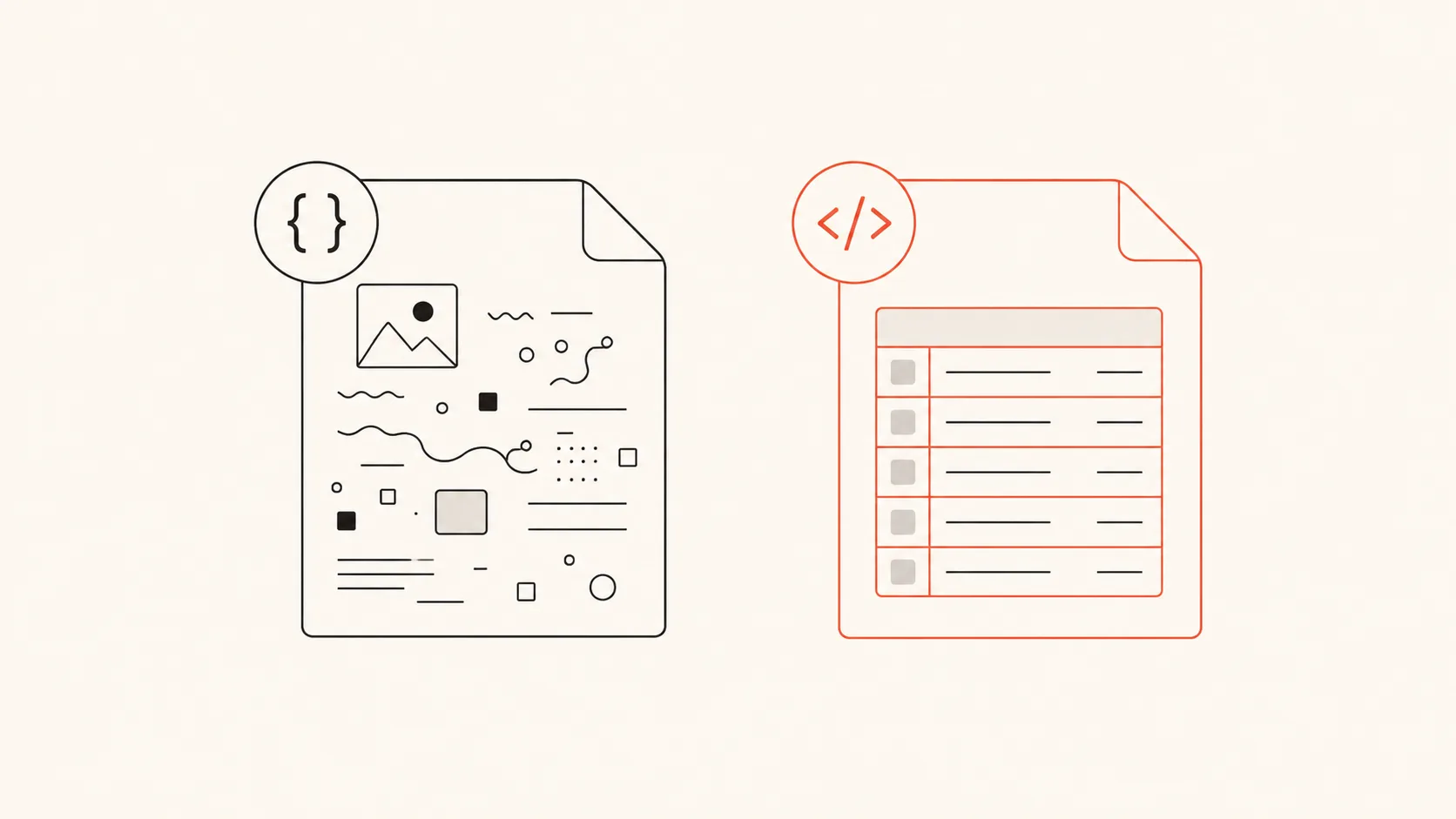
When you download your information from Instagram, it asks you to choose a format: HTML or JSON. It is easy to skip past, and most people leave it on the default. For checking your followers, that default is the wrong choice — and it is the number one reason follower tools fail to read an export.
Here is what the two formats are and which one you need.
HTML vs JSON, in plain terms
HTML is the format meant for reading. Open the export and you get web pages you can browse in your browser — your followers shown as a styled list, nice for a human skim. The downside: the data is wrapped in layout and styling, which makes it awkward and unreliable for a tool to parse.
JSON is the format meant for software. It is the same information — the same usernames, the same dates — but as clean, structured data with no styling around it. Any tool that analyses your followers expects JSON, because it can read it precisely and consistently.
Think of it as the difference between a printed receipt photographed on a table (HTML) and the itemised digital version (JSON). Same facts, but only one is easy for a machine to add up.
Why the default trips people up
Instagram defaults the format to HTML. If you do not change it, you get an HTML export — and when you bring that to a follower checker, it cannot read it. There is no way to convert an HTML export to JSON afterwards; you simply request a new one with JSON selected. It only takes a couple of minutes, but it is an annoying round trip if you did not know to look.
So: before you tap "Create files," change the format to JSON.
The exact steps
- Open the Instagram app and go to your profile.
- Tap the menu (☰) → Settings and privacy → Accounts Center.
- Your information and permissions → Download your information → Download or transfer information.
- Pick your Instagram account, then choose "Some of your information."
- In the list, select only "Followers and following." This keeps the file tiny and the wait short — minutes instead of the hours a full export can take.
- Choose Download to device, set the date range to All time, and set Format: JSON.
- Tap Create files. Instagram emails you a download link, usually within 5–30 minutes for a followers-only export. The link expires after about four days.
We keep a screenshot walkthrough of this exact flow in the download guide, including how to save the file on an iPhone or Android.
One more thing: you do not need the whole export
You might be tempted to grab "All available information." Do not — that bundle can reach gigabytes, take a day or more, and can choke a phone when you try to open it. The Followers and following subset is a few kilobytes and is everything a follower checker needs.
What to do with the JSON
Once you have the file, open it in a tool that reads it on your device. Unfollowly does exactly this: drop in the export (the ZIP, or the JSON files inside it) and your browser computes who does not follow you back, who your silent fans are, and who never accepted your follow request — without uploading anything.
If you accidentally exported HTML, the checker will tell you and link you straight back to the right step. No guessing.
See who doesn’t follow you back — privately.
No password, no login. Your Instagram data is analyzed in your browser and never uploaded.
Open the checker